Making a Game for Windows Command Prompt
Introduction
Hello everyone! Today I would like to share with you my latest programming endeavor: creating a clone of the classic arcade game: Asteroids. I had toyed around with making games before but never finished anything. However after watching Juniper Dev’s video Make Tiny Games, I was inspired to commit and fully finish a game! After a lot of hard work I am very excited to share the results! So let's not waste time. Here's a short breakdown of the project.
Gameplay demo
The Idea
Before this project I had already been messing around with how I could make a game in the Windows command prompt (aka the console, which is what I will call it for convenience). Visual Studio 2022 has a console app project already, and I could use my favorite programming language: C#. I also liked the idea of working for scratch without any game engines or frameworks. So it was a natural pick for this endeavor. That said, let's dive into the major parts of the code!
The Game Manager
At the heart of the project is the game manager. You can see it at the entry point of the program:
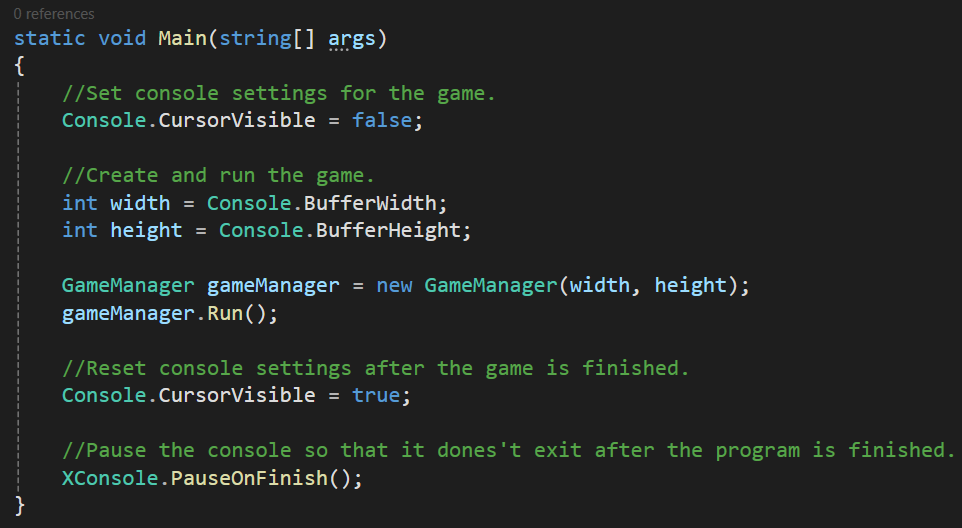
In order to explain we need to know a little about how games work in general. Games are just programs that loops forever until the player exits. During the loop two main methods are called: update and draw and they both do what they sound like. Update handles updating everything in the game. Stuff like player position, enemy health, etc. Draw simply renders all the visual things to the screen like the player, enemies, backgrounds, etc.
But what if we have more than just the main game? What if we wanted things like a title and game over screen? The answer is game scenes! A game scene is just a self contained "game". They has their own update and draw methods. We can then use a list of these game scenes to achieve the functionality we want. Did the player die and we want the game over screen? Simply point the program to use the game over scene's update and draw methods. Now the player will be able to see and interact with it! Same goes for any other game scene we want.
With that in mind; the game manager's primary responsibility is simple: it tracks the active game scene and calls its update and draw methods. Here's that bit of the code:
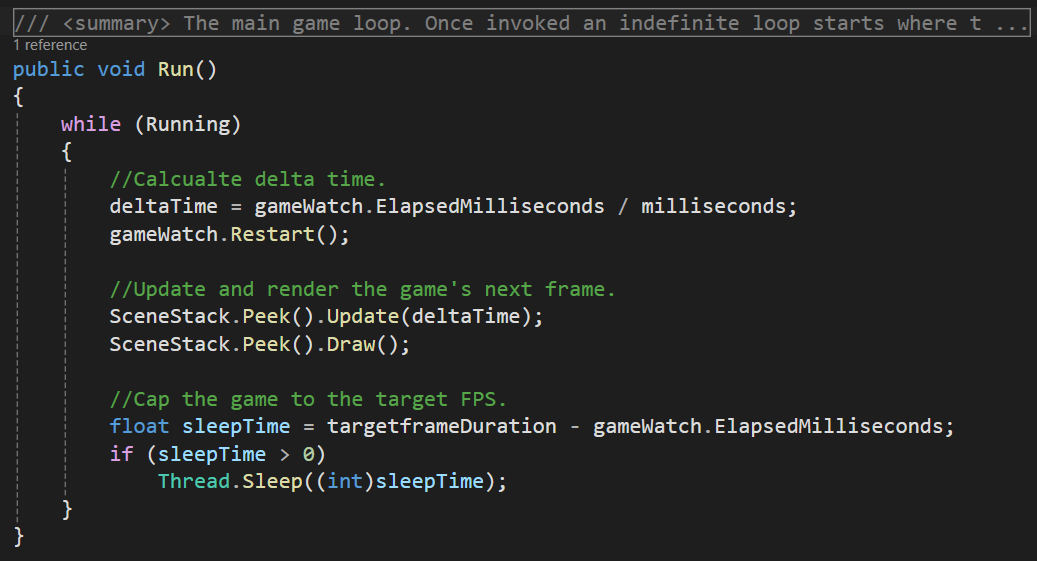
There is logic inside the other parts of the game to point the manager to different game scenes, depending on what's needed and when.
I would like to give credit to CDcodes' video Pygame Game States Tutorial: Creating an In-game Menu using States. Watching his video is where I learned about game states (or game scenes, as I've elected to call them).
Sprite Rendering
The other big part of this project is rendering stuff to the console window. The console just outputs text, like this:
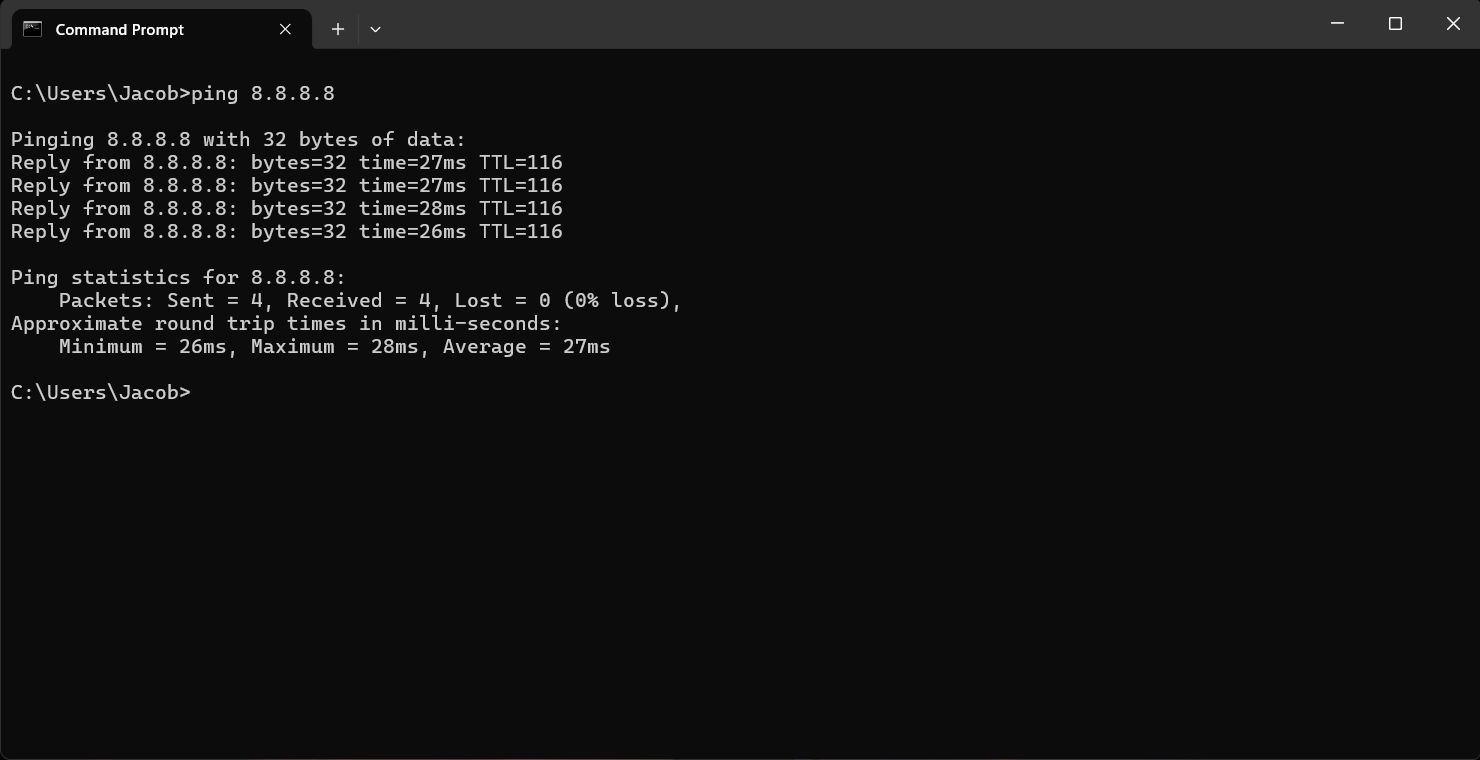
How can a game scene rendered, then? The answer is to be a bit clever! Image the console like a 120x30 grid. It has rows and columns and looks like this (scaled down for readability):
. . . . . . . . . .
. . . . . . . . . .
. . . . . . . . . .
If we wanted to render, say, "X" to the second slot of the middle row we could print out the following strings to the console:
. . . . . . . . . . (new line)
. X . . . . . . . (new line)
. . . . . . . . . .
Which would output:
. . . . . . . . . .
. X . . . . . . .
. . . . . . . . . .
And now if we replace the periods (.) in the strings with white spaces ( ) and print those we would get:
X
Voila! "X" has been rendered. The part of the code that handles this is the ScreenSheet. Sprites are loaded onto it which are then rendered in the manner show above. Of course a sprite will be made of of many characters and not just one. For example the spaceship in the game looks like this:
/+\-
- ===>
\+/-
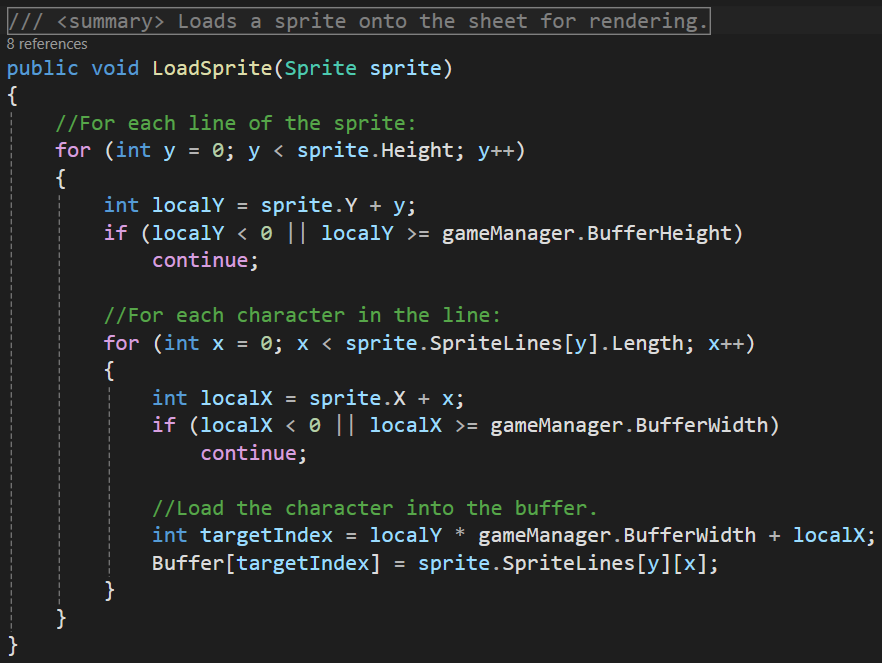
The ScreenSheet will load each character of a sprite onto the console (more on that in a second). But if it sees that a character would be rendered outside of the window, that character is skipped. This allows sprites that are partially on screen to have their visible parts rendered still.
Now, there is a problem. Some of you might have noticed it already. If each character of a sprite is rendered to the screen one at a time; there might be some screen flicking as a result. So what's the fix? The solution is to render sprites into a buffer string that's the size of the console. After all the characters of all the sprites are rendered onto that buffer we can then print the entire buffer string to the screen in one shot! We are essentially drawing all the sprites on a sheet and then showing that whole sheet. This technique is known as double buffering. Here's a snippet of the ScreenSheet code that loads sprites:
Sprites
The last piece I'll mention in detail are the images used in the game. They are called sprites in game development. Since the console can only output text, the images for this game are ASCII (text) art. Here's the spaceship again for reference:
/+\-
- ===>
\+/-
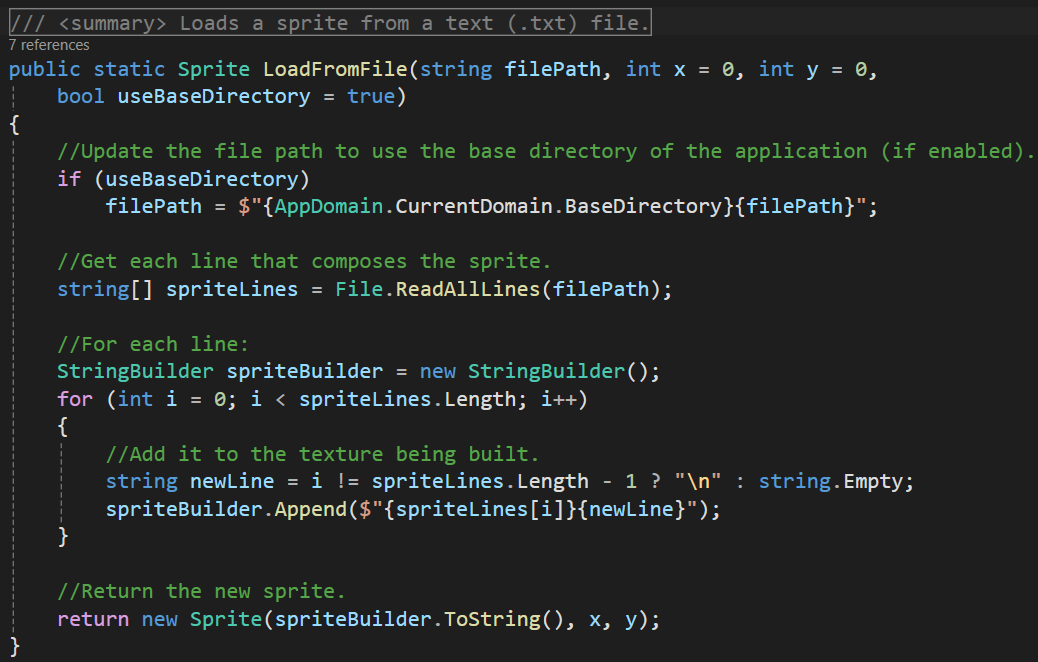
A sprite has several importation properties. First is the texture, which is the ASCII art itself. The texture is broken up into its individual lines. Next is the width of the sprite, which is the length of the longest line it its texture. The height likewise is the number of lines the texture has. And of course the sprite has an X and Y position. These last four properties are what's needed for doing AABB collision detection, which is how the game detects if an asteroid has collided with the Earth, player, or bullets. Here's the method that loads a texture from a file as a new sprite:
There's not much else to say on sprites. They aren't super complex!
Wrap Up
While I could write at length on this project, those are the major parts I wanted to touch on. The rest of the game is fairly simple! There's logic transitioning between the different game scenes, handling user input, loading/saving the highscore, starting a new game, etc. If you would like to take a look through the code yourself, here's a link to the project's GitHub page! On the page there's also a statement about my use of AI in this project.
Well, that's about it for today. Thank you for reading!